Q: Gmail sign-in permissions in an endless loop?
When signing in with Gmail, Google shows the permission screen. After signing in and accepting the prompts, you are returned to Speaking Email, which reports that it does not have the required permissions and sends you back to Gmail again. This repeats in an endless loop.
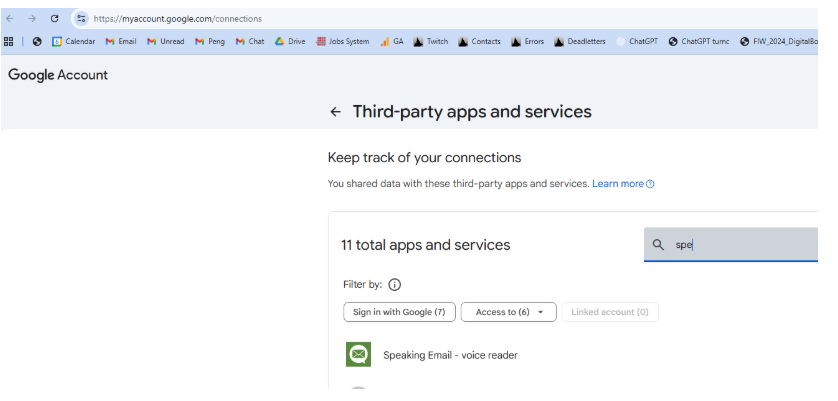
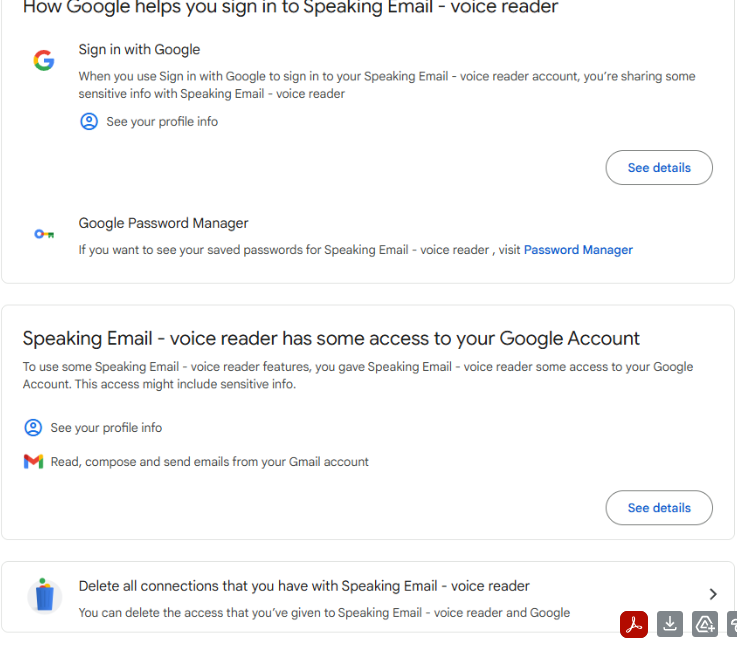
This is a problem with an unclear permissions prompt in the Google screen. If, during the first consent attempt, the checkbox allowing Speaking Email to access your emails is not selected (it is easy to miss), Google can save a partial permission. On later attempts, Google may no longer show the checkbox, making it impossible to grant the missing permission.
A: How to fix
What is Speaking Email?
An app for iPhone and Android that reads your email out loud to you. It intelligently extracts content from emails (minus the signatures, disclaimers and threads). And it lets you action your email - archive, mark-as-read, trash, flag, reply, or forward. It can be completely by voice command, or use the large on-screen buttons or full screen touch gestures.
Who is it for?
People with blindness or visual impairment. People who are busy and run out of time to get through their inbox. People who want to make productive use of time when driving between appointments.
Do you have Apple CarPlay?
See our other product Speaking Email CarPlay.